 The Nerdy Tech Blog
How to set up a Windrose dedicated server using Docker and Docker Compose
Tue 28 April 2026Since the early access release of Windrose on Steam mid of April I started playing that game with some friends. Usually I refrain from buying any early access releases because of some bad experiences in the past. But a friend played that demo they offered previously and highly recommended that game to me. And he was right: it's a very enjoyable experience.
After playing that game with one person hosting it on his machine, we noticed that it was not working out that way for us. We all have jobs and family, and it was not possible for him to be online when any of us wanted to play. So what are we going to do? We need a dedicated Windrose server. So I looked for existing Docker images and found hardly anything usable. Most of it was AI generated bullshit. Somehow usable but absolutely unmaintainable code and full of security flaws. There was also no automation for new image builds or server updates. So I decided once again to build my own.
I pulled the depot from Steam and noticed that there is no Linux version only a Windows version. 😬 So I had a look at Wine which is a compatibility layer for running Windows applications on Linux. I also spent quite a while reverse engineering how that dedicated Server actually works. There is also an official dedicated Server guide, but its focus is running the server on Windows. I encountered one of the worst designs for configuring a server: you need to start it once in order to generate the config files (ServerDescription.json, WorldDescription.json) as they contain unique identifiers generated and needed by the server. As a second step you need to shut down that server and edit these configuration files to your liking. That actually makes the startup of this server incredibly slow and complicated. So ended up building a Linux Docker image using the Wine compatibility layer for running the Windows version of the Windrose server eventually. I have to say that was rather painful. I hope Kraken Express offers a Linux build of that server soon and optimizes the way of server configuration.
Automated Docker Image Builds
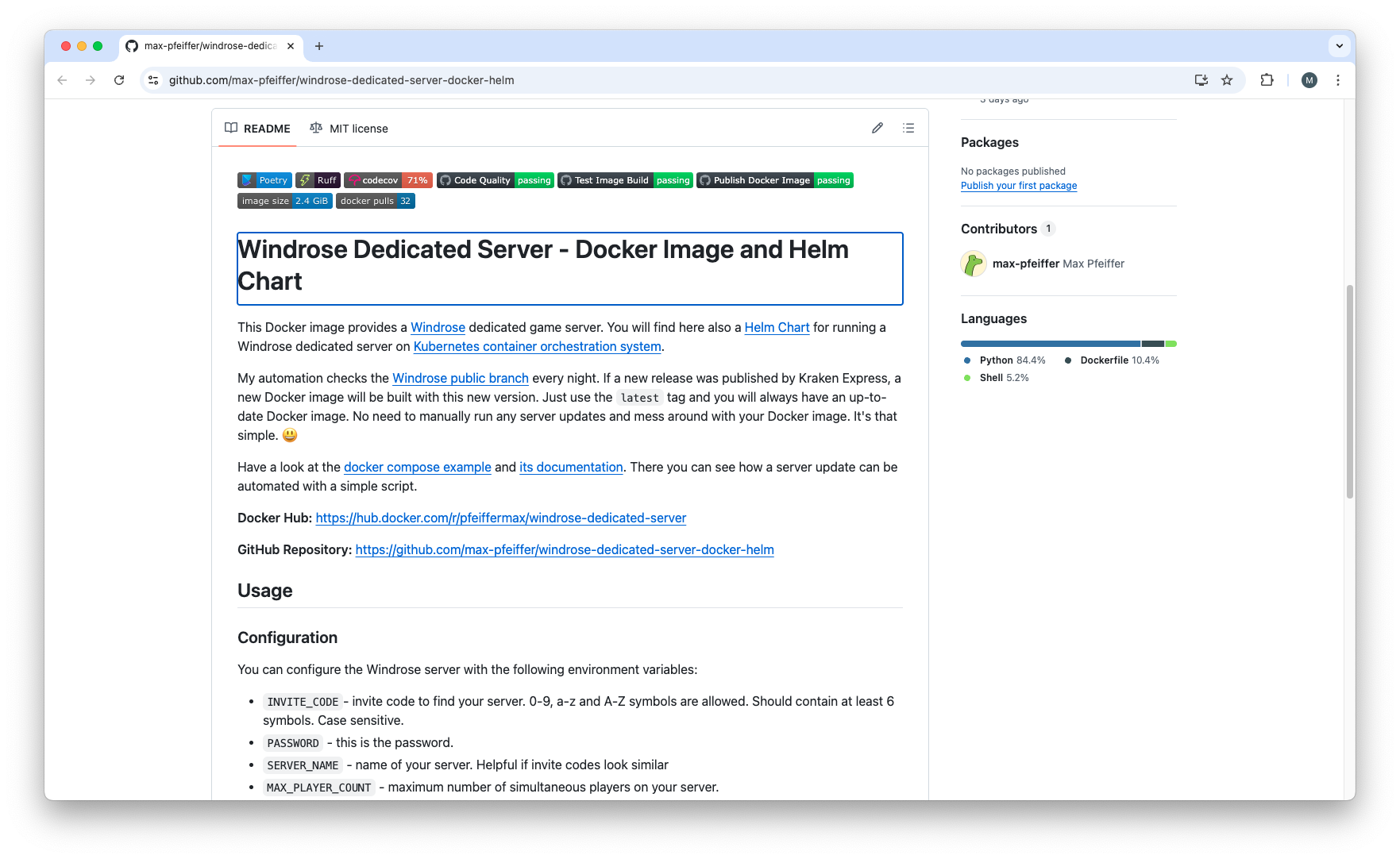
I built an automation which checks the Windrose public branch every night. If a new release was published by Kraken Express, a new Docker image will be built with this new version. Just use the latest tag and you will always have an up-to-date Docker image. No need to manually run any server updates and mess around with your Docker image. It's that simple. 😃
Docker Volume
Windrose dedicated server is a stateful application.
When you start the Win64 binary in ./R5/Binaries/Win64/WindroseServer-Win64-Shipping.exe the saves, logs etc.
are put into ./windrose/R5/Saved directory. So you want to cover that directory with a
Docker Volume.
When you run an application in a Docker container the files in the Docker container are only persisted inside the container
as long as the container exists. So if you run a new Docker container with a new Windrose server version, all files
in your ./windrose/R5/Saved location are gone. This is not what we want because we would lose all world and player data.
With a Docker Volume you can overcome that issue. This enables you to
persist the Windrose server data when you switch to new Docker images with new Windrose server versions.
You need to mount that Docker Volume on your ./windrose/R5/Saved location.
This way you make sure your data is still there. That data lives until you delete the
Docker Volume.
Docker Compose
The Docker way to pull all this together is Docker Compose. With a docker compose file you can define your Windrose server service and the Docker Volume. When you run the Windrose server as non-root user you also need to adjust the file system permission in that Docker Volume so the unprivileged user can access these files. This you need to do with an init container.
Installation
I put all this together in my windrose-dedicated-server-docker-helm project free for use for anyone. With this you will have your Windrose server up and running in a couple of minutes. It consists of:
- secure Docker image for Windrose dedicated server on Docker Hub
- Docker compose file
- script for automating server update
Prerequisites:
- Docker Engine or Docker Desktop installed
- git installed
If you are not familiar with git and/or don't want to install it, you can download the docker compose file manually from GitHub or just cut and paste its contents.
For the installing and running the Windrose server you need clone the git repository and start the Windrose server using docker compose:
git clone https://github.com/max-pfeiffer/windrose-dedicated-server-docker-helm.git
cd windrose-dedicated-server-docker-helm/examples/docker-compose
docker compose up -d
Stop the server:
docker compose down
If you want to show the logs, option -f follows the logs:
docker compose logs -f
That's basically all you need to do for running your own Windrose server. If you want to change the Windrose server settings
just change/add options in the command section of the windrose-server service in the
docker compose file.
Automate Server Updates
On a Linux system you can automate the server update easily with a script. If there is an update for the Windrose server, a new image will be built around 01:15 at night (time is not guaranteed by GitHub). For me, it was safe to run the update job with cron at 06:00 in the morning:
0 6 * * * /srv/windrose/windrose-server-update.sh